- Authors
- Name
Overview
Let us learn how to install Apache Phoenix.
Environment
- Zookeeper Version: 3.5.7
- HBase version: 2.4.15
- phoenix version: 5.1.2
The official website guide recommends the following installation steps:
download and expand our installation binary tar corresponding to your HBase version
copy the phoenix server jar into the lib directory of every region server and master
restart HBase
add the phoenix client jar to the classpath of your JDBC client or application
We have detailed instructions for setting up SQuirreL SQL as your SQL client
Installation
Download Binary and Add to HBase Library
Perform this on all nodes where HBase is installed (HMaster, Region Server).
wget https://dlcdn.apache.org/phoenix/phoenix-5.1.2/phoenix-hbase-2.4.0-5.1.2-bin.tar.gz
tar -zxvf phoenix-hbase-2.4.0-5.1.2-bin.tar.gz
cd phoenix-hbase-2.4.0-5.1.2-bin
sudo cp phoenix-server-hbase-2.4.0-5.1.2.jar  /usr/local/hbase/lib/
Restart HBase
Restart the HMaster and Region Server.
Execute the following commands on the master node.
stop-hbase.sh
start-hbase.sh
Run sqlline.py
After properly filling in the Zookeeper quorum in the hbase-site.xml inside the bin folder, run the Phoenix SQL shell with the following command.
python3.10 ./sqlline.py
If the prompt 0: jdbc:phoenix:> appears, Phoenix has been successfully launched. You can verify the automatically created Phoenix tables by checking the table information in the HBase Web UI as shown below.
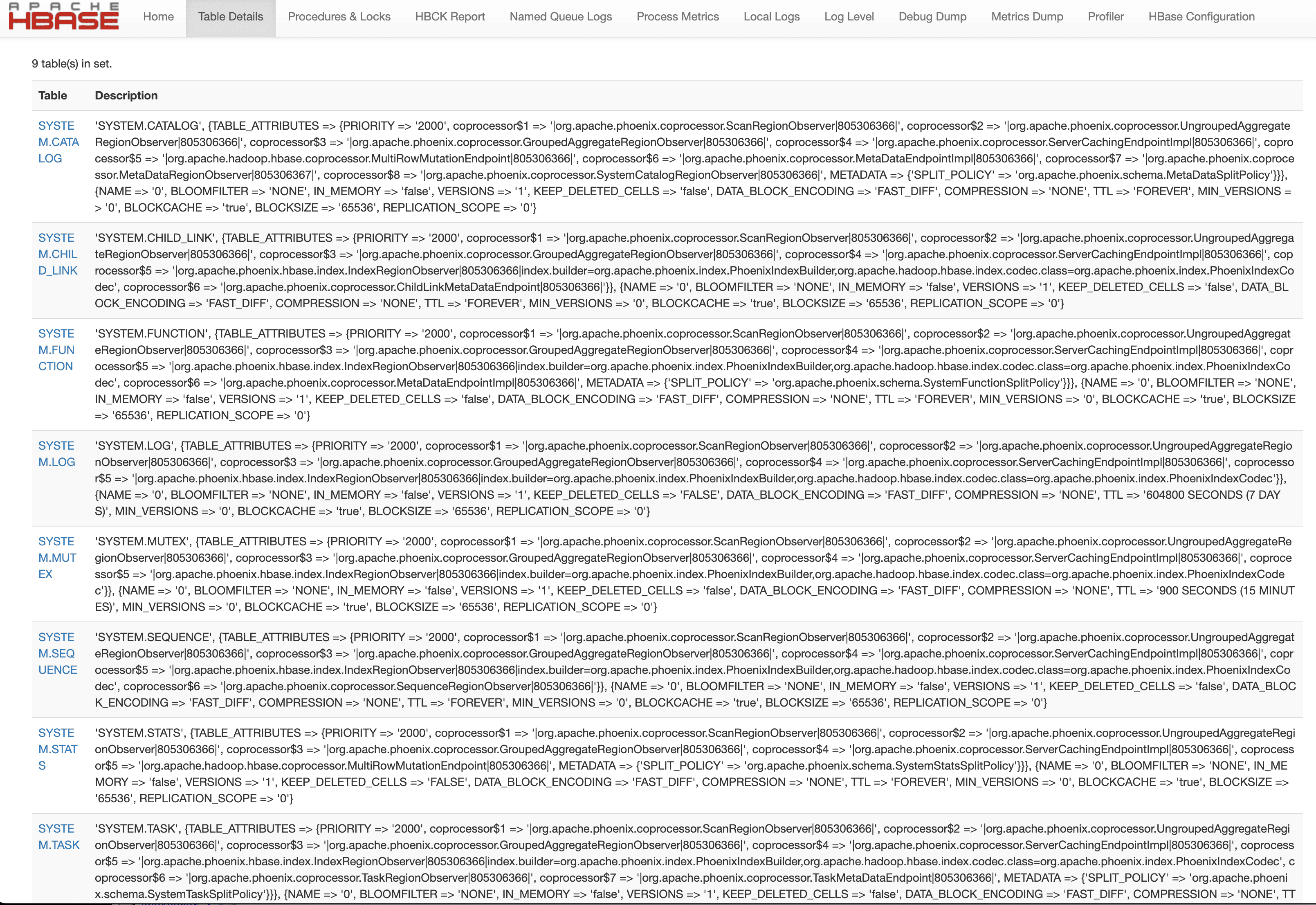
Phoenix Example
As shown below, pass the Zookeeper quorum and a SQL file along with sqlline to execute the SQL.
python sqlline.py latte01,latte02,latte03 ../examples/STOCK_SYMBOL.sql