Split View: 개발자를 위한 전자제어 입문 — 아두이노부터 AI 로봇까지
개발자를 위한 전자제어 입문 — 아두이노부터 AI 로봇까지
- 들어가며
- 왜 개발자가 전자제어를 배워야 하나
- 로드맵
- 준비물 (5만원이면 충분!)
- 기초 개념: 3가지만 알면 된다
- 실습 1: LED 깜빡이기 (Hello World)
- 실습 2: 버튼으로 LED 제어
- 실습 3: 온습도 센서 (DHT11)
- 실습 4: 서보모터 제어 (탁구 로봇의 시작!)
- 실습 5: PWM으로 LED 밝기 조절
- 개발자 프로젝트 아이디어
- AI + 전자제어 융합 (Ultimate Goal)
- 시리즈 로드맵
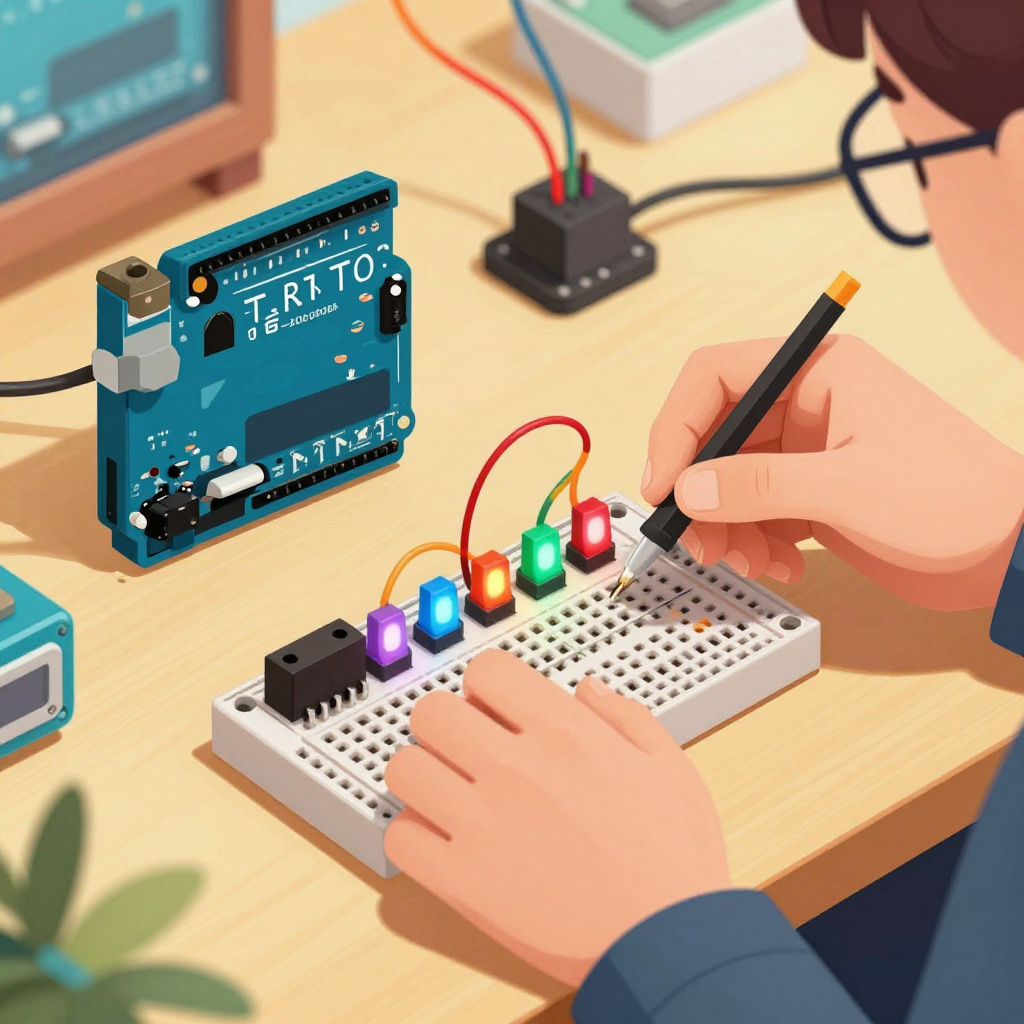
들어가며
우리는 매일 코드를 쓰지만, 그 코드가 물리적 세계와 만나는 순간을 경험해본 적 있나요? LED가 내 코드에 반응해서 켜지는 그 순간, 소프트웨어 개발의 새로운 차원이 열립니다.
이 시리즈는 소프트웨어 개발자를 위한 전자제어 입문입니다. C/C++이나 Python을 할 줄 안다면, 전자제어는 생각보다 훨씬 쉽습니다.
왜 개발자가 전자제어를 배워야 하나
- 풀스택의 진짜 의미 — 소프트웨어 + 하드웨어 = 완전한 시스템
- 로보틱스 시대 — 2026년 휴머노이드 로봇 시대 진입
- IoT/Edge AI — 클라우드를 넘어 디바이스로
- 취미가 곧 실력 — 임베디드 개발자 몸값은 계속 상승중
로드맵
[1단계] 아두이노 기초 (이 글)
    └── LED, 버튼, 센서, 서보모터
[2단계] ESP32 IoT
    └── WiFi, MQTT, 웹 대시보드
[3단계] Raspberry Pi + 카메라
    └── 컴퓨터 비전, 에지 AI
[4단계] ROS 2 로봇
    └── 자율 주행, 매니퓰레이터
[5단계] AI + 하드웨어 융합
    └── 음성 인식 로봇, 스마트홈
준비물 (5만원이면 충분!)
| 부품 | 가격 | 용도 |
|---|---|---|
| Arduino Uno R4 WiFi | ~25,000원 | 메인 보드 |
| 브레드보드 + 점퍼선 | ~5,000원 | 회로 연결 |
| 센서 37종 키트 | ~15,000원 | 다양한 실습 |
| SG90 서보모터 x2 | ~3,000원 | 모터 제어 |
기초 개념: 3가지만 알면 된다
1. 디지털 vs 아날로그
디지털: 0 또는 1 (켜짐/꺼짐)
  → LED 제어, 버튼 읽기
  → Arduino: digitalRead(), digitalWrite()

아날로그: 0~1023 연속 값
  → 온도 센서, 조도 센서
  → Arduino: analogRead(), analogWrite() (PWM)
2. 전압, 전류, 저항 (옴의 법칙)
V = I × R

V(전압) = 5V (Arduino 기본)
R(저항) = 220Ω (LED 보호용)
I(전류) = 5V / 220Ω = 22.7mA ✅ (LED 안전 범위)
개발자 비유: 전압 = API 요청, 전류 = 데이터 흐름, 저항 = Rate Limiter
3. GPIO (General Purpose Input/Output)
Arduino Uno R4:
  디지털 핀: D0~D13 (입력/출력)
  아날로그 핀: A0~A5 (입력)
  PWM 핀: D3, D5, D6, D9, D10, D11 (유사 아날로그 출력)
  전원: 5V, 3.3V, GND
실습 1: LED 깜빡이기 (Hello World)
회로
Arduino D13 ──[220Ω]──[LED(+)]──[LED(-)]── GND
코드
// Blink — 전자제어의 Hello World
void setup() {
    pinMode(13, OUTPUT);  // D13을 출력 모드로
}

void loop() {
    digitalWrite(13, HIGH);  // LED ON
    delay(1000);             // 1초 대기
    digitalWrite(13, LOW);   // LED OFF
    delay(1000);             // 1초 대기
}
Python 개발자라면: Arduino IDE 대신 MicroPython 사용 가능!
# MicroPython (ESP32에서 실행)
from machine import Pin
import time

led = Pin(13, Pin.OUT)

while True:
    led.value(1)   # ON
    time.sleep(1)
    led.value(0)   # OFF
    time.sleep(1)
실습 2: 버튼으로 LED 제어
const int buttonPin = 2;
const int ledPin = 13;
int buttonState = 0;

void setup() {
    pinMode(ledPin, OUTPUT);
    pinMode(buttonPin, INPUT_PULLUP);  // 내부 풀업 저항 사용
}

void loop() {
    buttonState = digitalRead(buttonPin);

    if (buttonState == LOW) {  // 버튼 눌림 (PULLUP이라 LOW)
        digitalWrite(ledPin, HIGH);
    } else {
        digitalWrite(ledPin, LOW);
    }
}
실습 3: 온습도 센서 (DHT11)
#include <DHT.h>

#define DHTPIN 2
#define DHTTYPE DHT11

DHT dht(DHTPIN, DHTTYPE);

void setup() {
    Serial.begin(9600);
    dht.begin();
}

void loop() {
    float humidity = dht.readHumidity();
    float temperature = dht.readTemperature();

    Serial.print("온도: ");
    Serial.print(temperature);
    Serial.print("°C / 습도: ");
    Serial.print(humidity);
    Serial.println("%");

    delay(2000);
}
실습 4: 서보모터 제어 (탁구 로봇의 시작!)
#include <Servo.h>

Servo myServo;

void setup() {
    myServo.attach(9);  // D9 핀에 서보 연결
}

void loop() {
    // 0도 → 180도 스윕
    for (int angle = 0; angle <= 180; angle += 10) {
        myServo.write(angle);
        delay(50);
    }
    // 180도 → 0도 스윕
    for (int angle = 180; angle >= 0; angle -= 10) {
        myServo.write(angle);
        delay(50);
    }
}
실습 5: PWM으로 LED 밝기 조절
const int ledPin = 9;  // PWM 핀

void setup() {
    pinMode(ledPin, OUTPUT);
}

void loop() {
    // Fade in
    for (int brightness = 0; brightness <= 255; brightness += 5) {
        analogWrite(ledPin, brightness);
        delay(30);
    }
    // Fade out
    for (int brightness = 255; brightness >= 0; brightness -= 5) {
        analogWrite(ledPin, brightness);
        delay(30);
    }
}
개발자 프로젝트 아이디어
| 프로젝트 | 난이도 | 연결 가능한 소프트웨어 |
|---|---|---|
| 🏓 탁구 스코어보드 | ⭐⭐ | fingerscore 연동 |
| 🌡️ 서버룸 온도 모니터 | ⭐⭐ | Grafana 대시보드 |
| 🚨 침입 감지 알림 | ⭐⭐⭐ | Telegram Bot 알림 |
| 🤖 2축 카메라 팬틸트 | ⭐⭐⭐ | OpenCV 얼굴 추적 |
| 🎮 커스텀 매크로 키보드 | ⭐⭐⭐ | 개발 생산성 도구 |
| 🏠 AI 스마트홈 | ⭐⭐⭐⭐ | K8s + MQTT + LLM |
AI + 전자제어 융합 (Ultimate Goal)
[Arduino 센서] → [ESP32 WiFi] → [K8s MQTT Broker]
                                        ↓
                               [AI 추론 (GPU 서버)]
                                        ↓
                               [제어 명령 → 모터/LED]
집에 있는 GPU 서버들과 아두이노를 연결하면:
- 음성 명령 → Qwen3-TTS → 스피커 (omen)
- 카메라 영상 → LTX-2 분석 → 서보모터 제어 (spark01)
- 센서 데이터 → 이상 탐지 AI → 알림 (spark02)
시리즈 로드맵
| 편 | 주제 | 상태 |
|---|---|---|
| 1편 | 아두이노 기초 (이 글) | ✅ |
| 2편 | ESP32 WiFi + MQTT IoT | 🔜 |
| 3편 | Raspberry Pi + 카메라 비전 | 🔜 |
| 4편 | ROS 2 로봇 제어 기초 | 🔜 |
| 5편 | AI + 하드웨어 통합 프로젝트 | 🔜 |
📝 퀴즈 — 전자제어 기초 (클릭해서 확인!)
Q1. 옴의 법칙 V = I x R에서 5V 전원에 1kΩ 저항을 연결하면 흐르는 전류는? ||5V / 1000Ω = 5mA (0.005A)||
Q2. Arduino에서 디지털 핀과 아날로그 핀의 차이는? ||디지털: 0/1(HIGH/LOW) 두 상태만. 아날로그: 0~1023 범위의 연속 값 읽기 가능 (ADC 10bit)||
Q3. PWM(Pulse Width Modulation)이란 무엇이고 어디에 쓰이나? ||디지털 신호의 ON/OFF 비율(Duty Cycle)을 조절해 유사 아날로그 출력을 만드는 기법. LED 밝기 조절, 모터 속도 제어에 사용||
Q4. INPUT_PULLUP 모드에서 버튼을 누르면 읽히는 값은? ||LOW (0) — 내부 풀업 저항이 평상시 HIGH를 유지하고, 버튼 누르면 GND에 연결되어 LOW||
Q5. DHT11 센서의 측정 범위와 정밀도는?
||온도: 050°C (±2°C), 습도: 2080% (±5%). 저가형으로 정밀도는 낮지만 입문용으로 충분||
Q6. 서보모터 SG90의 제어 신호와 동작 범위는?
||PWM 신호 (50Hz, 12ms 펄스폭), 0180도 회전. analogWrite가 아닌 Servo 라이브러리 사용||
Electronics for Developers — From Arduino to AI Robotics
- Introduction
- Why Developers Should Learn Electronics
- Roadmap
- What You Need (Under $40 is enough!)
- Fundamental Concepts: Just 3 Things
- Exercise 1: Blinking an LED (Hello World)
- Exercise 2: Control LED with a Button
- Exercise 3: Temperature & Humidity Sensor (DHT11)
- Exercise 4: Servo Motor Control (The Start of a Table Tennis Robot!)
- Exercise 5: LED Brightness Control with PWM
- Developer Project Ideas
- AI + Electronics Fusion (Ultimate Goal)
- Series Roadmap
- Quiz
Introduction
We write code every day, but have you ever experienced the moment when that code meets the physical world? The instant an LED lights up in response to your code, a whole new dimension of software development opens up.
This series is an introduction to electronics for software developers. If you know C/C++ or Python, electronics is much easier than you think.
Why Developers Should Learn Electronics
- The True Meaning of Full-Stack — Software + Hardware = Complete System
- The Age of Robotics — Entering the era of humanoid robots in 2026
- IoT/Edge AI — Beyond the cloud, onto devices
- Hobby Becomes Expertise — Embedded developer salaries keep rising
Roadmap
[Stage 1] Arduino Basics (This article)
    └── LED, Buttons, Sensors, Servo Motors
[Stage 2] ESP32 IoT
    └── WiFi, MQTT, Web Dashboard
[Stage 3] Raspberry Pi + Camera
    └── Computer Vision, Edge AI
[Stage 4] ROS 2 Robotics
    └── Autonomous Driving, Manipulators
[Stage 5] AI + Hardware Fusion
    └── Voice-Controlled Robot, Smart Home
What You Need (Under $40 is enough!)
| Component | Price | Purpose |
|---|---|---|
| Arduino Uno R4 WiFi | ~$19 | Main board |
| Breadboard + Jumpers | ~$4 | Circuit wiring |
| 37-in-1 Sensor Kit | ~$11 | Various exercises |
| SG90 Servo Motor x2 | ~$3 | Motor control |
Fundamental Concepts: Just 3 Things
1. Digital vs Analog
Digital: 0 or 1 (ON/OFF)
  → LED control, button reading
  → Arduino: digitalRead(), digitalWrite()

Analog: Continuous values 0~1023
  → Temperature sensor, light sensor
  → Arduino: analogRead(), analogWrite() (PWM)
2. Voltage, Current, Resistance (Ohm's Law)
V = I × R

V (Voltage) = 5V (Arduino default)
R (Resistance) = 220Ω (LED protection)
I (Current) = 5V / 220Ω = 22.7mA ✅ (Safe range for LED)
Developer Analogy: Voltage = API request, Current = Data flow, Resistance = Rate Limiter
3. GPIO (General Purpose Input/Output)
Arduino Uno R4:
  Digital Pins: D0~D13 (Input/Output)
  Analog Pins: A0~A5 (Input)
  PWM Pins: D3, D5, D6, D9, D10, D11 (Pseudo-analog output)
  Power: 5V, 3.3V, GND
Exercise 1: Blinking an LED (Hello World)
Circuit
Arduino D13 ──[220Ω]──[LED(+)]──[LED(-)]── GND
Code
// Blink — The Hello World of Electronics
void setup() {
    pinMode(13, OUTPUT);  // Set D13 as output
}

void loop() {
    digitalWrite(13, HIGH);  // LED ON
    delay(1000);             // Wait 1 second
    digitalWrite(13, LOW);   // LED OFF
    delay(1000);             // Wait 1 second
}
Python developer? You can use MicroPython instead of Arduino IDE!
# MicroPython (runs on ESP32)
from machine import Pin
import time

led = Pin(13, Pin.OUT)

while True:
    led.value(1)   # ON
    time.sleep(1)
    led.value(0)   # OFF
    time.sleep(1)
Exercise 2: Control LED with a Button
const int buttonPin = 2;
const int ledPin = 13;
int buttonState = 0;

void setup() {
    pinMode(ledPin, OUTPUT);
    pinMode(buttonPin, INPUT_PULLUP);  // Use internal pull-up resistor
}

void loop() {
    buttonState = digitalRead(buttonPin);

    if (buttonState == LOW) {  // Button pressed (LOW because of PULLUP)
        digitalWrite(ledPin, HIGH);
    } else {
        digitalWrite(ledPin, LOW);
    }
}
Exercise 3: Temperature & Humidity Sensor (DHT11)
#include <DHT.h>

#define DHTPIN 2
#define DHTTYPE DHT11

DHT dht(DHTPIN, DHTTYPE);

void setup() {
    Serial.begin(9600);
    dht.begin();
}

void loop() {
    float humidity = dht.readHumidity();
    float temperature = dht.readTemperature();

    Serial.print("Temperature: ");
    Serial.print(temperature);
    Serial.print("°C / Humidity: ");
    Serial.print(humidity);
    Serial.println("%");

    delay(2000);
}
Exercise 4: Servo Motor Control (The Start of a Table Tennis Robot!)
#include <Servo.h>

Servo myServo;

void setup() {
    myServo.attach(9);  // Connect servo to D9
}

void loop() {
    // Sweep 0° → 180°
    for (int angle = 0; angle <= 180; angle += 10) {
        myServo.write(angle);
        delay(50);
    }
    // Sweep 180° → 0°
    for (int angle = 180; angle >= 0; angle -= 10) {
        myServo.write(angle);
        delay(50);
    }
}
Exercise 5: LED Brightness Control with PWM
const int ledPin = 9;  // PWM pin

void setup() {
    pinMode(ledPin, OUTPUT);
}

void loop() {
    // Fade in
    for (int brightness = 0; brightness <= 255; brightness += 5) {
        analogWrite(ledPin, brightness);
        delay(30);
    }
    // Fade out
    for (int brightness = 255; brightness >= 0; brightness -= 5) {
        analogWrite(ledPin, brightness);
        delay(30);
    }
}
Developer Project Ideas
| Project | Difficulty | Software Integration |
|---|---|---|
| Table Tennis Scoreboard | ⭐⭐ | fingerscore integration |
| Server Room Temp Monitor | ⭐⭐ | Grafana Dashboard |
| Intrusion Detection Alert | ⭐⭐⭐ | Telegram Bot notification |
| 2-Axis Camera Pan-Tilt | ⭐⭐⭐ | OpenCV face tracking |
| Custom Macro Keyboard | ⭐⭐⭐ | Dev productivity tool |
| AI Smart Home | ⭐⭐⭐⭐ | K8s + MQTT + LLM |
AI + Electronics Fusion (Ultimate Goal)
[Arduino Sensors] → [ESP32 WiFi] → [K8s MQTT Broker]
                                        ↓
                               [AI Inference (GPU Server)]
                                        ↓
                               [Control Commands → Motors/LEDs]
Connecting your home GPU servers with Arduino enables:
- Voice command → Qwen3-TTS → Speaker (omen)
- Camera feed → LTX-2 analysis → Servo motor control (spark01)
- Sensor data → Anomaly detection AI → Alerts (spark02)
Series Roadmap
| Part | Topic | Status |
|---|---|---|
| 1 | Arduino Basics (This article) | ✅ |
| 2 | ESP32 WiFi + MQTT IoT | 🔜 |
| 3 | Raspberry Pi + Camera Vision | 🔜 |
| 4 | ROS 2 Robot Control Basics | 🔜 |
| 5 | AI + Hardware Integration Project | 🔜 |
Quiz — Electronics Fundamentals (Click to check!)
Q1. If you connect a 1kΩ resistor to a 5V power supply using Ohm's law V = I x R, what is the current? ||5V / 1000Ω = 5mA (0.005A)||
Q2. What is the difference between digital and analog pins on Arduino? ||Digital: Only two states — 0/1 (HIGH/LOW). Analog: Can read continuous values in the range 0~1023 (10-bit ADC)||
Q3. What is PWM (Pulse Width Modulation) and what is it used for? ||A technique that adjusts the ON/OFF ratio (duty cycle) of a digital signal to create pseudo-analog output. Used for LED brightness control and motor speed control||
Q4. What value is read when a button is pressed in INPUT_PULLUP mode? ||LOW (0) — The internal pull-up resistor keeps the pin HIGH normally, and pressing the button connects it to GND resulting in LOW||
Q5. What is the measurement range and accuracy of the DHT11 sensor?
||Temperature: 050°C (±2°C), Humidity: 2080% (±5%). Low precision for the price, but sufficient for beginners||
Q6. What is the control signal and operating range of the SG90 servo motor?
||PWM signal (50Hz, 12ms pulse width), 0180 degree rotation. Uses the Servo library, not analogWrite||
Quiz
Q1: What is the main topic covered in "Electronics for Developers — From Arduino to AI
Robotics"?
A guide for software developers expanding into the hardware world. From Arduino basics to sensor control, ESP32 IoT, and AI + hardware fusion projects. If you can write code, electronics is easier than you think.
Q2: Why Developers Should Learn Electronics?
The True Meaning of Full-Stack — Software + Hardware = Complete System The Age of Robotics —
Entering the era of humanoid robots in 2026 IoT/Edge AI — Beyond the cloud, onto devices Hobby
Becomes Expertise — Embedded developer salaries keep rising
Q3: Explain the core concept of Fundamental Concepts: Just 3 Things.
- Digital vs Analog 2. Voltage, Current, Resistance (Ohm's Law) Developer Analogy: Voltage = API request, Current = Data flow, Resistance = Rate Limiter 3. GPIO (General Purpose Input/Output)
Q4: What are the key aspects of Exercise 1: Blinking an LED (Hello World)?
Circuit Code Python developer? You can use MicroPython instead of Arduino IDE!
Q5: How does AI + Electronics Fusion (Ultimate Goal) work?
Connecting your home GPU servers with Arduino enables: Voice command → Qwen3-TTS → Speaker (omen)
Camera feed → LTX-2 analysis → Servo motor control (spark01) Sensor data → Anomaly detection AI →
Alerts (spark02)